
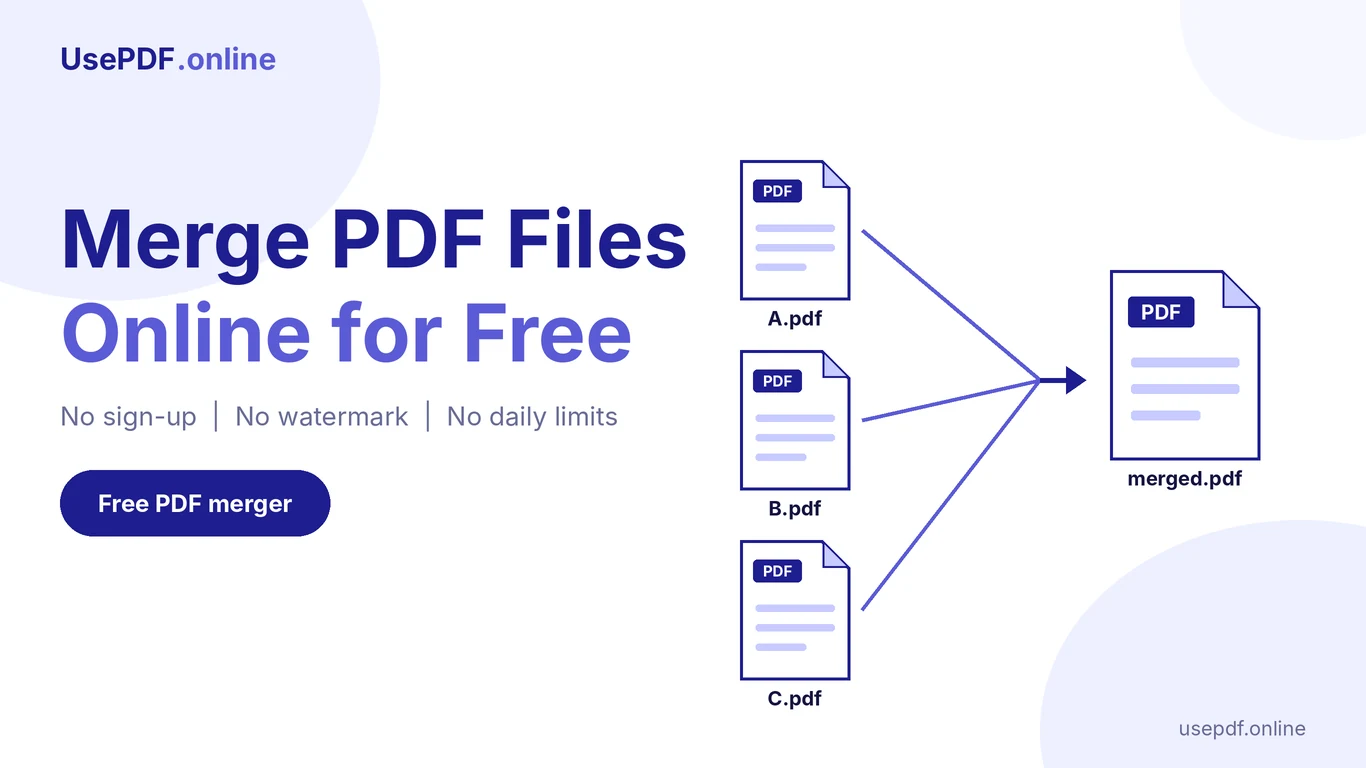
To merge PDF files online for free, open the Merge PDF tool on UsePDF.online, add your files, put them in the right order, and press Merge PDFs. Your combined file downloads automatically. You do not need an account, the result has no watermark, and there is no daily limit on how often you can use it.
The tool runs in your browser, so your files stay on your device while you work. This guide walks you through each step, fixes the most common problems, and shows when a different tool, such as Split PDF or Compress PDF, is the better choice.
What Does It Mean to Merge PDF Files?
Merging PDF files means joining two or more separate PDF documents into one. The pages from the first file come first, the pages from the second file follow, and so on. You may also hear people call this combining or joining PDFs. The result is the same.
People merge PDFs because one file is easier to handle than five. A recruiter opens one attachment instead of three. An accounting team receives one claim instead of a pile of receipts. A teacher grades one submission instead of loose pages.
One detail matters here. This tool joins whole files. It does not rearrange individual pages inside a single PDF. If you need that level of control, the section on arranging files shows a simple workaround.
How UsePDF.online helps: The tool copies each page into the new document as it is, so selectable text stays selectable and images keep their original quality.
How to Merge Multiple PDF Files Online: Step by Step
These steps work on any device with a modern browser.
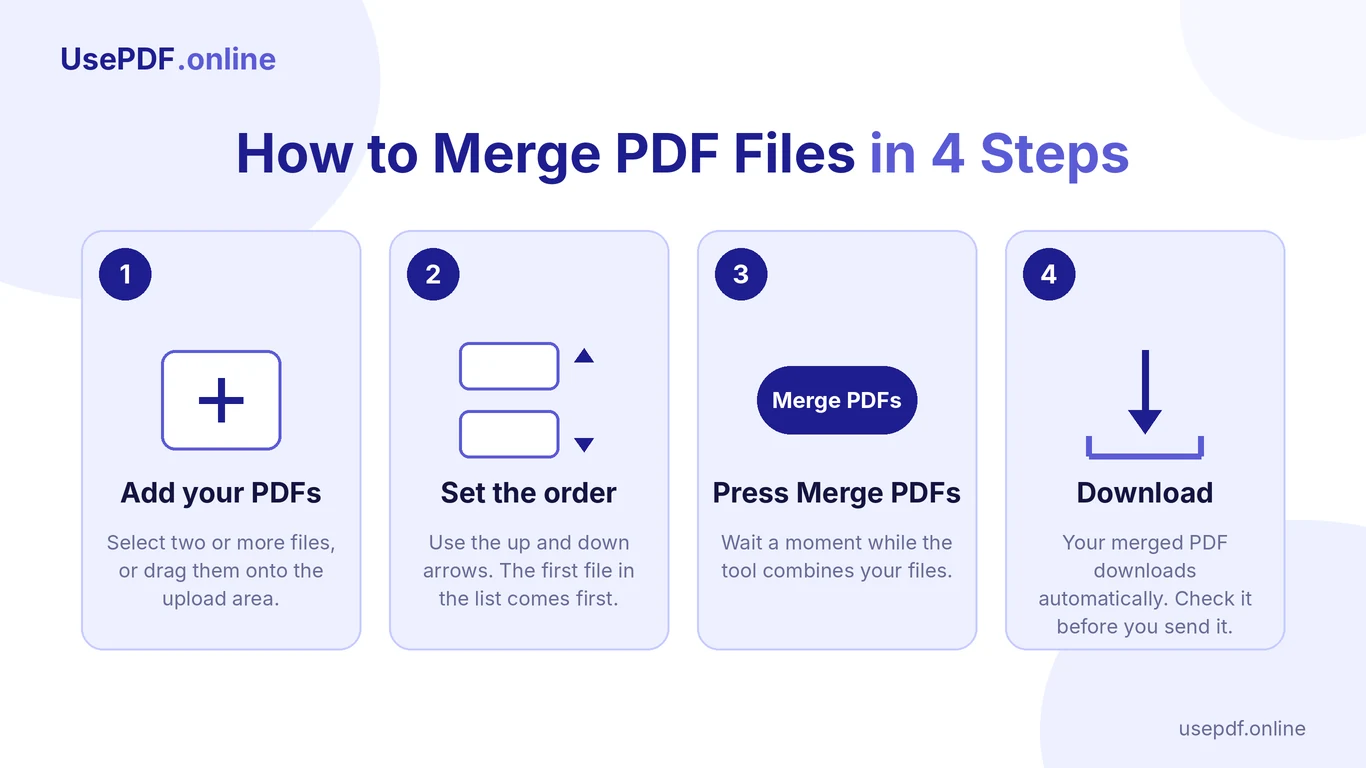
- Open the tool. Go to the Merge PDF page on UsePDF.online.
- Add your PDFs. Select two or more files, or drag them onto the upload area. You can add more files at any time.
- Set the order. Use the up and down arrows next to each file. The first file in the list becomes the first pages of the merged document.
- Remove mistakes. Click the cross button to take out any file you added by accident.
- Press Merge PDFs. Wait a moment while the tool combines your files.
- Check the result. Your merged PDF downloads automatically. Open it and scroll through before you send it.
Pro tip: Number your file names (01, 02, 03) before you add them. The list is easier to read, and mistakes stand out faster.
How UsePDF.online helps: There is nothing to install and no account to create. You pick the files, set the order and download the result.
Why Use UsePDF.online to Combine PDFs?
Many tools can merge PDFs. Here are the practical reasons to try this one:
- Free, with no daily limit. The standard tools are free to use, with no cap on how many tasks you run per day.
- No sign-up and no watermark. The merged file contains only your pages.
- Browser-based processing. According to the site, your files are read by your own device and are not uploaded to UsePDF.online.
- Original quality. Pages are copied, not re-rendered, so text stays selectable and images stay sharp.
- Works on phones. The tool offers a file picker as well as drag and drop.
Know the limits too. There is no fixed cap on the number of files, but your device's memory sets a practical ceiling, so large batches work better in stages. Bookmarks and interactive form fields from the source files may not carry over. Password-protected files must be unlocked first.
For comparison, Adobe's free online merger lists a limit of 100 files per merge and 500 pages per document. UsePDF.online sets no fixed limit, but your device decides how much it can handle at once.
How UsePDF.online helps: The limits sit on the tool page itself, so you know what to expect before you start.
How to Arrange PDF Files in the Correct Order
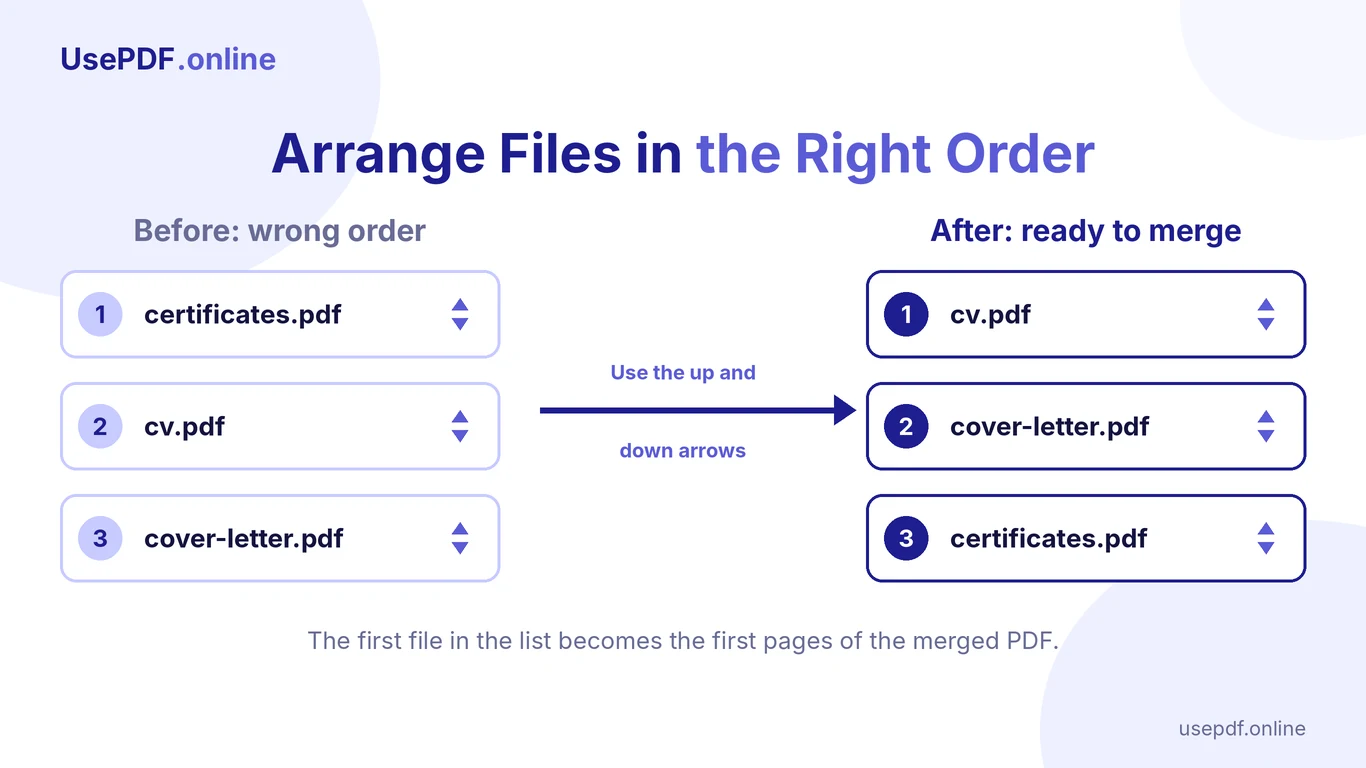
The order of the list is the order of the final document. Use the arrows to move a file up or down until the list tells the story you want.
Run through this checklist before you press Merge:
- Put cover pages and summaries first.
- Put supporting documents, such as receipts, certificates and appendices, last.
- Read the list from top to bottom once.
What if the pages inside one file are in the wrong order? The tool arranges files, not single pages. Use Split PDF to pull the pages you need into separate files, then merge those files in the new order. For example, if pages 7 to 10 of a report should come before pages 1 to 6, split the report into two files and add them to Merge PDF in the order you want.
How UsePDF.online helps: Merge PDF and Split PDF live on the same free site, so you can switch between them without another account or app.
How to Merge PDFs on Windows, Mac, Android and iPhone
The tool runs in your browser, so the steps are the same on every device. Only the way you pick your files changes.
- Windows and Mac: Open the page in your browser, then drag the PDFs from a folder onto the upload area or click to browse.
- Android: Tap the upload area and choose your PDFs with the file picker.
- iPhone: Tap the upload area and choose your PDFs from your saved files.
If a large merge feels slow on a phone, merge in two smaller rounds and then merge the two results.
How UsePDF.online helps: The layouts are built for small screens first, so you can finish a merge from your phone without switching to a computer.
Common PDF Merging Problems and Fixes
A file is rejected as protected or damaged. Open it in a PDF viewer, remove the password or re-save it, then add it again. Only unlock files you own or have permission to change.
The merged file is too large. Each page is copied unchanged, so the result is roughly the combined size of the originals. Compress PDF can shrink it, but that tool converts pages to compressed images, so selectable text may be lost. Keep your uncompressed original if you need searchable text.
The tool stays on "Working…". Very large files can take time on slower devices. Wait a little, or merge fewer files at once.
Bookmarks or form fields are missing. These may not carry over to the merged file. Keep the original files if you rely on them.
The order is wrong. Adjust the arrows and merge again. Nothing is uploaded, so redoing a merge is quick.
How to Merge a Password-Protected PDF
- Open the file in a PDF viewer and enter the password.
- Remove the protection or save an unprotected copy, but only if the document is yours or you have permission.
- Add the unprotected copy to the merge list.
- Press Merge PDFs as usual.
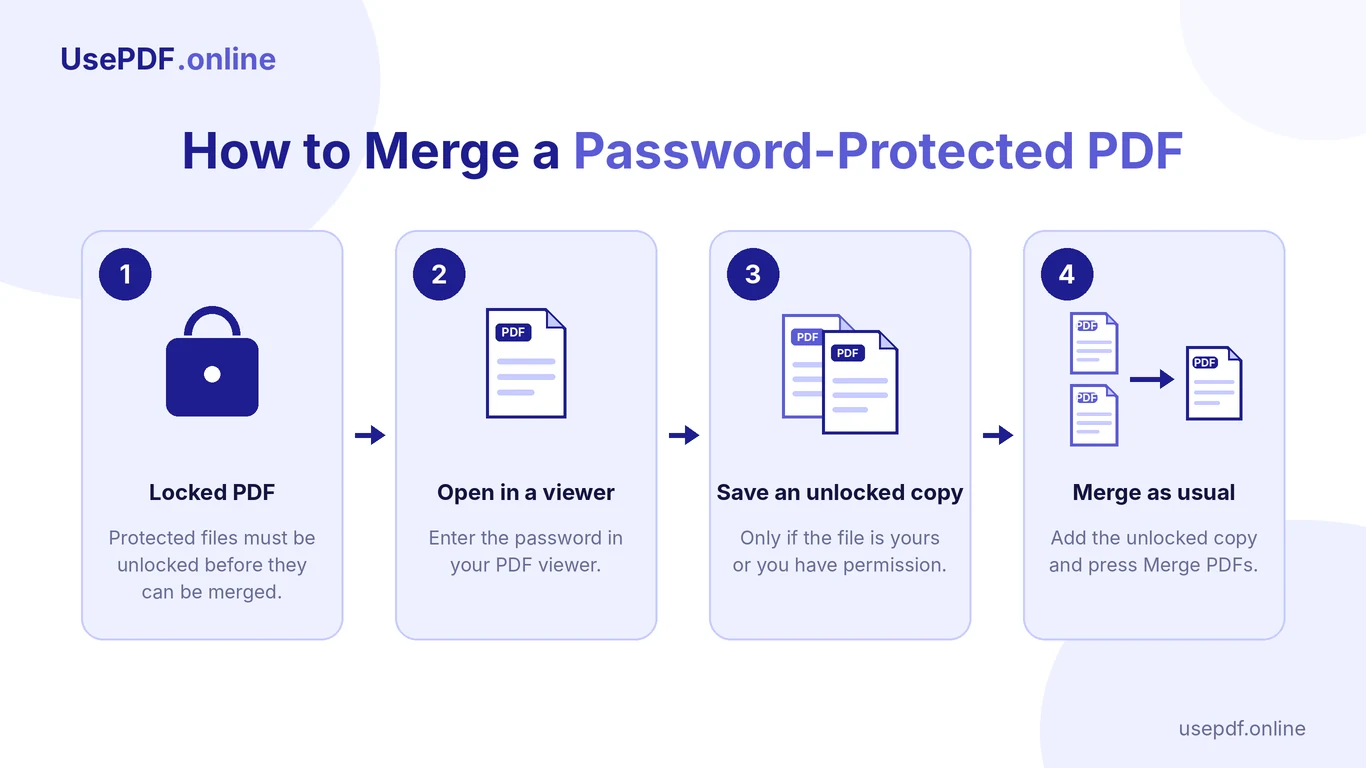
How UsePDF.online helps: The tool tells you up front that protected files need unlocking, so you can sort that out before you start.
Is It Safe to Merge Confidential PDF Documents Online?
According to UsePDF.online, merging happens in your browser. Your files are read by your own device and are not uploaded to the site's server. The merged file lives in your browser's memory until it downloads, and closing the tab discards it. The page and its processing libraries do load from the internet, but your files are not part of those requests. The Privacy Policy explains the details.
Still, no online tool can promise zero risk. Your device, browser extensions and the computer you use all matter. These habits help:
- Avoid shared or public computers for sensitive documents.
- Close the tab when you finish, and delete merged copies you no longer need.
- Include only the files you actually need. The FTC's guide to protecting personal information advises keeping only the sensitive data your business needs.
- Follow your employer's rules for legal, medical and financial files.
How UsePDF.online helps: Local processing keeps your documents on your own device during the merge, which gives you one less place to worry about.
Real-Life Uses: Resumes, Invoices, Reports and School Assignments
These are common scenarios, not case studies.
Job application packet. Merge your CV, cover letter and certificates, in that order. The recruiter opens one tidy attachment instead of three.
Freelancer invoice with receipts. Put the invoice first and the receipts after it, in the same order the invoice lists them. Your client's accounting team can approve one file.
Team report. Chapters from different colleagues arrive as separate PDFs. Merge them in chapter order, scroll through once, then compress the file if it is too big to email.
School assignment. Combine the cover page, essay, bibliography and a scanned worksheet into one submission. Some portals accept only one upload per assignment.
Need to edit the text afterward? PDF to Word extracts the text into an editable Word file. It does not reproduce the full layout, and it does not read scanned pages.
Want more PDF guides? Read ARTICLE 3 ANCHOR TEXT and ARTICLE 12 ANCHOR TEXT.
How UsePDF.online helps: One free tool covers all four situations, with no watermark on the finished file.
Merge PDF vs Split PDF: What's the Difference?
The two tools do opposite jobs, and they work well together.
| Merge PDF | Split PDF | |
|---|---|---|
| What it does | Joins two or more PDFs into one | Pulls pages or page ranges into new PDF files |
| Starts with | Several PDF files | One PDF |
| Ends with | One combined PDF | One or more smaller PDFs |
| Best for | Applications, invoices, reports | Removing pages or sharing one section |
Use them together when you need more control. Merge your files, then split out the pages you want to keep. Or split a file into sections, then merge the sections in a new order.
How UsePDF.online helps: Both tools are free, so you can chain them as many times as the job needs.
Frequently Asked Questions
Is merging PDF files on UsePDF.online really free?
Yes. You can use the tool without an account, the output has no watermark, and there is no daily limit.
Is there a limit on the number of files I can merge?
There is no fixed limit. Your device's memory sets the practical limit, so merge very large batches in smaller rounds.
Will the text in the merged PDF stay searchable?
Yes. Pages are copied across as they are, so selectable and searchable text stays that way. A scanned page that is only an image stays an image.
Can I reorder individual pages?
Not with this tool, which arranges whole files. Use Split PDF to separate the pages you need, then merge them in the order you want.
Can I merge password-protected PDFs?
Not directly. Remove the password in a PDF viewer first, then add the unlocked copy.
Are my files uploaded to a server?
According to UsePDF.online, no. The merge runs in your browser, and the page and its libraries load from the internet when you open the tool.
Will bookmarks and form fields survive the merge?
They may not. Keep your original files if you need them.
Ready to combine your files? Merge PDF Files Free on UsePDF.online, with no sign-up and no watermark.