
Need to extract a few pages from a lengthy PDF without sharing the entire document? You can split PDF online free using UsePDF.online, a browser-based PDF splitter that lets you extract individual pages, select page ranges, or divide an entire PDF into separate files.
Short answer: Open Split PDF, add your file, type the pages you want (for example 3-7 or 1-3, 5, 8-10), press Split PDF, and download the result as a PDF or a ZIP file.
There is no software to install, no account to create, and no daily usage limit. Your document is processed directly in your browser rather than uploaded to UsePDF.online's servers.
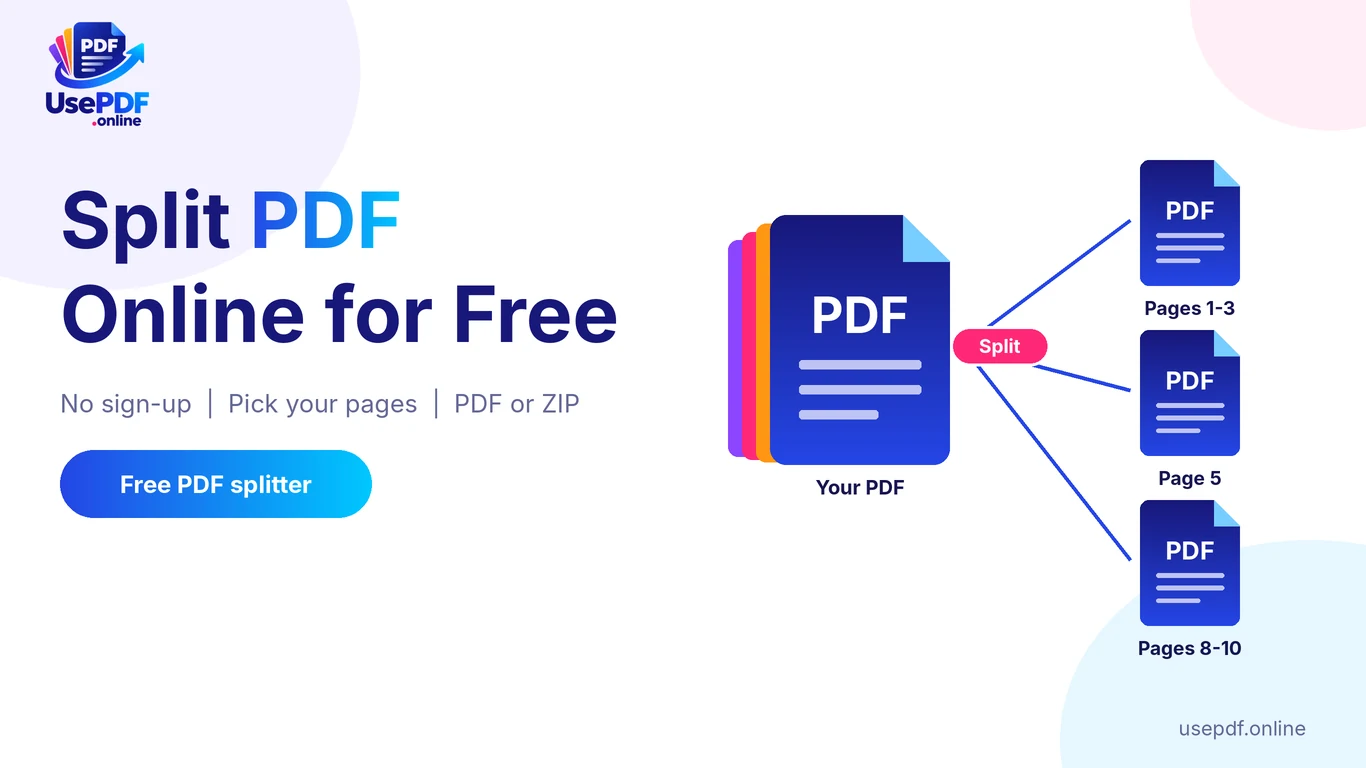
Whether you're separating chapters from a textbook, extracting pages from a business report, or organizing scanned documents, you can create smaller PDF files in just a few steps.
- Free PDF splitting with no sign-up
- Extract individual pages or multiple ranges
- Browser-based processing with original page quality
What Is PDF Splitting?
PDF splitting is the process of dividing one PDF document into smaller files or extracting selected pages into a new document. A PDF describes a fixed-layout document, according to the PDF Association, which is why you usually split it rather than edit it page by page.
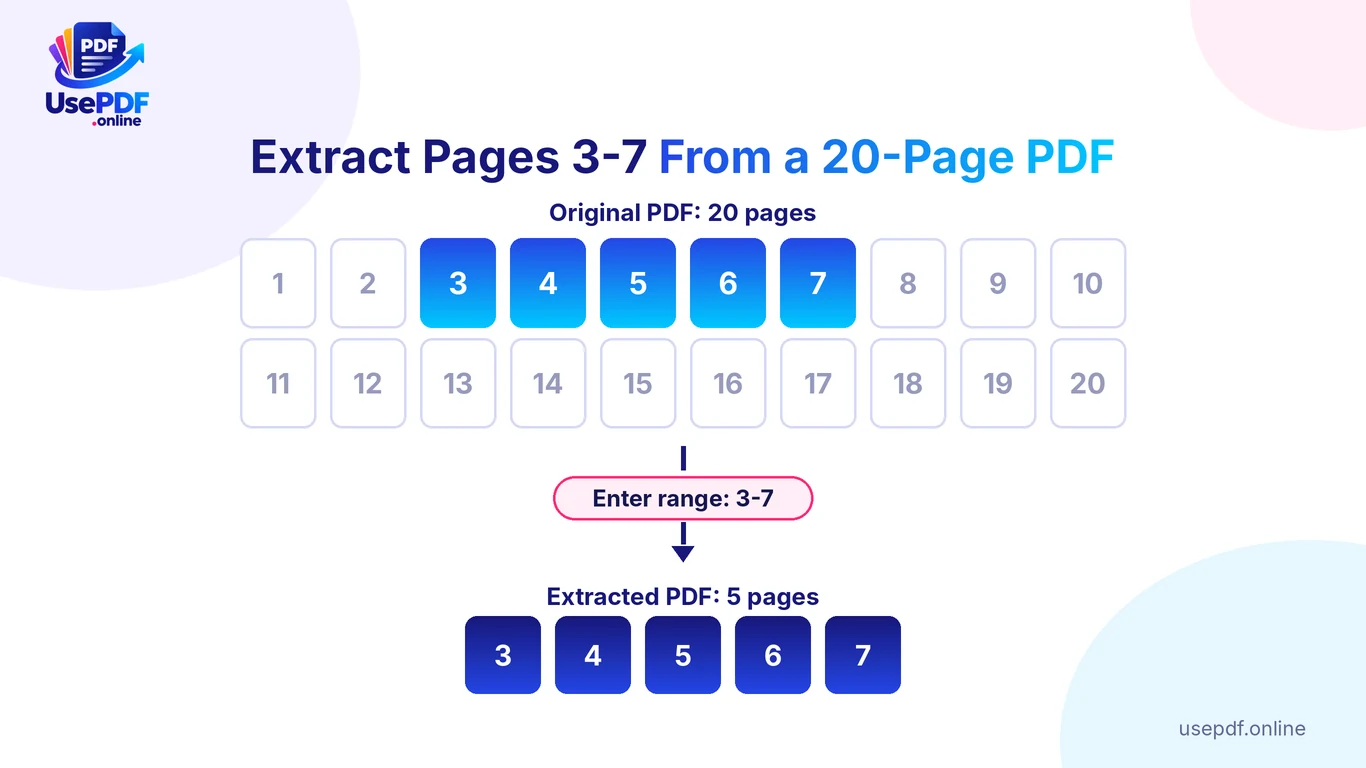
For example, imagine you have a 20-page business report, but your colleague only needs pages 3 through 7. Instead of sharing the entire report, you can extract those five pages into a separate PDF.
A PDF splitter can help you:
- Extract specific pages: Save page 5 or pages 3–7 from a longer document.
- Separate PDF pages: Create an individual PDF for every page.
- Divide documents by sections: Turn a large report into multiple smaller files.
- Remove unnecessary pages: Save only the content you want to keep.
- Organize documents: Separate invoices, assignments, contracts, or scanned records.
Splitting a PDF doesn't require editing the original content. With UsePDF.online, pages are copied into the output documents without being re-rendered, which helps preserve their original visual quality and text.
How to Split PDF Online Free: Step by Step
You don't need expensive PDF software or advanced technical knowledge to separate PDF pages. Follow these steps using the free UsePDF PDF Splitter.
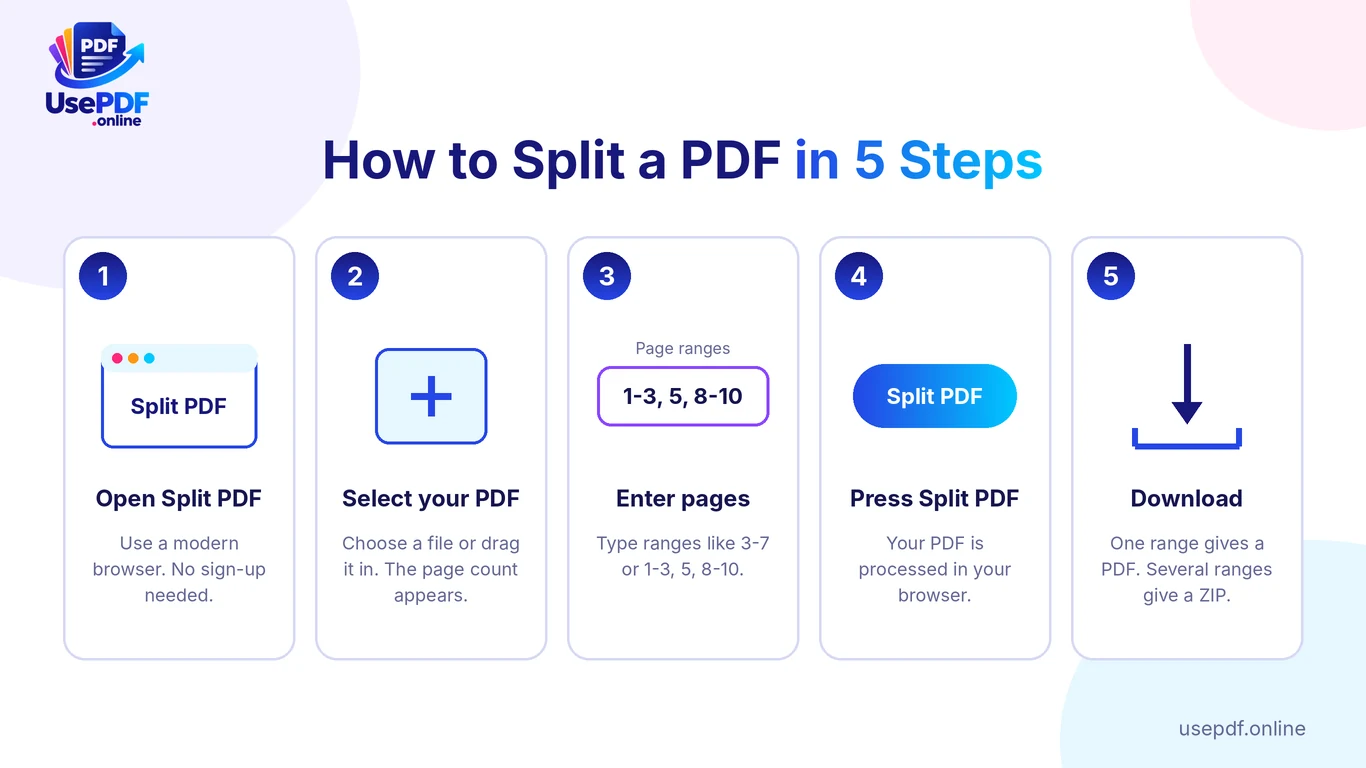
Step 1: Open the PDF splitter. Visit the Split PDF page on UsePDF.online using a modern browser such as Chrome, Firefox, Edge or Safari.
Step 2: Select your PDF document. Choose a PDF from your device or drag and drop it into the upload area. The tool displays the total number of pages.
Step 3: Enter page numbers or ranges. Type the pages you want, such as 3-7, or enter several selections separated by commas, such as 1-3, 5, 8-10. Each comma-separated selection creates a separate PDF.
Step 4: Split your document. Click the Split PDF button. The tool processes your document locally in your browser and prepares the selected pages.
Step 5: Download your files. A single selected range produces a PDF file. Multiple ranges produce several PDFs bundled into one ZIP download. Open the downloaded files to confirm the correct pages were extracted.
That's it. You can now share, store, or organize the extracted pages without including the entire original document.
Split PDF Online Free Download: PDF or ZIP?
"Download" here means saving your results, not installing software. One range gives you one PDF. Several ranges, or the every-page option, give you one ZIP file. The ZIP keeps everything in a single download, which saves repeated download prompts on phone browsers.
Split PDF Online Free With No Sign-Up (and Without Email)
Many free PDF sites ask you to register before they split a file. UsePDF.online does not. The Split PDF page says "Free, no sign-up," and the site states that its tools need no account and add no watermark.
If you searched for a split PDF online free no signup option, this is how it works here:
- No account. You never create a login.
- No email address. There is no registration step, so you can split a PDF online free without email.
- No watermark. The site states that its tools do not mark the output.
- No install. The tool runs in your browser.
You can use it the same way on a work computer, a library PC or a phone.
How to Extract Specific Pages from a PDF
Sometimes you don't need to divide an entire document. You only want one page or a particular section. UsePDF.online works as a free PDF page extractor, so you save exactly the pages you select.
Example: extract pages 3–7 from a 20-page report. Imagine a 20-page financial report where only pages 3 through 7 matter for a meeting. Upload the file, enter 3-7 in the page range field, and click Split PDF. The resulting PDF contains only those five pages.
How to extract a single PDF page
If you need only page 12, enter 12 instead of a range. The tool creates a one-page PDF that you can download and share independently. This is useful for certificates, receipts, signature pages, invoices, or individual pages from a larger document.
How to Split PDFs by Page Ranges
Page ranges make it easy to divide large documents into meaningful sections. Instead of splitting every page individually, you specify where each new document should begin and end.
| Page range input | Result |
|---|---|
1-5 | One PDF containing pages 1–5 |
6-10 | One PDF containing pages 6–10 |
1-3, 5, 8-10 | Three separate PDF files |
4 | One PDF containing page 4 |
1-10, 11-20 | Two PDFs, each containing 10 pages |
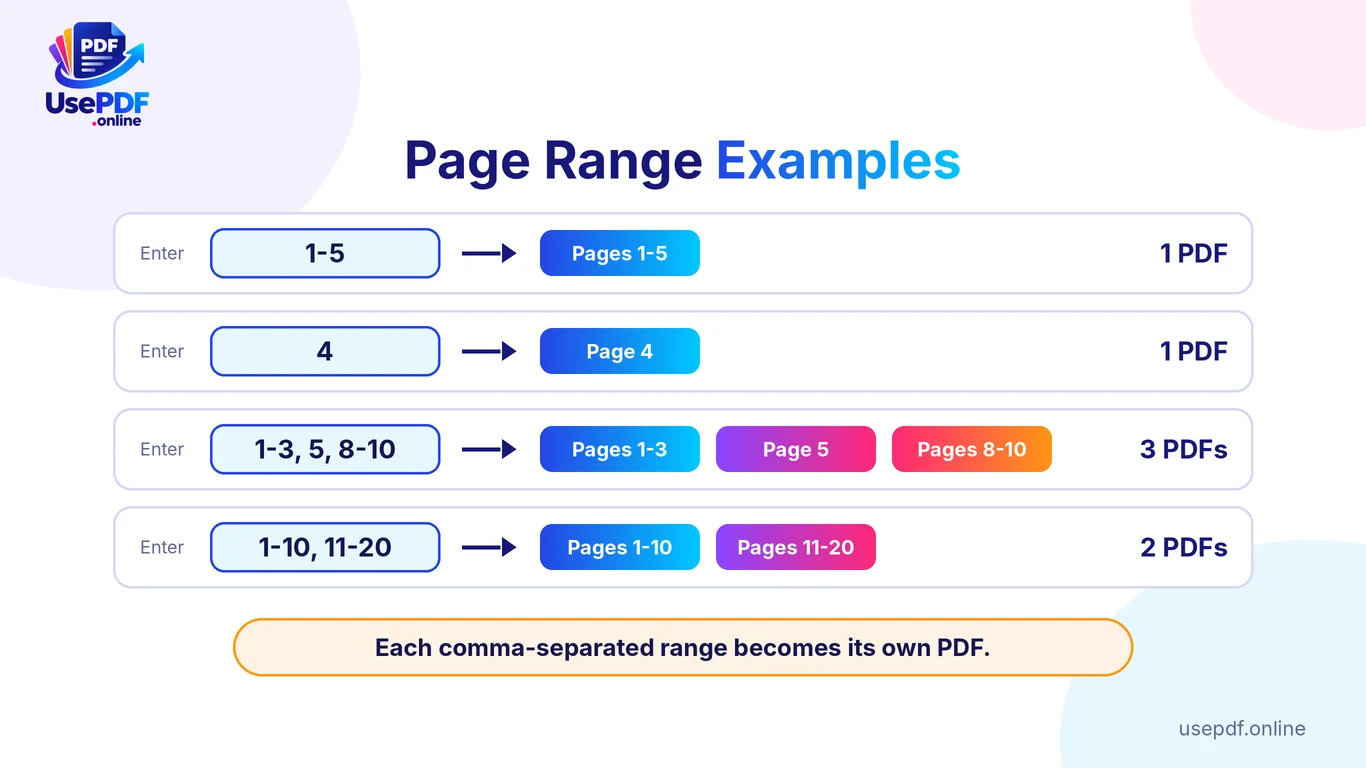
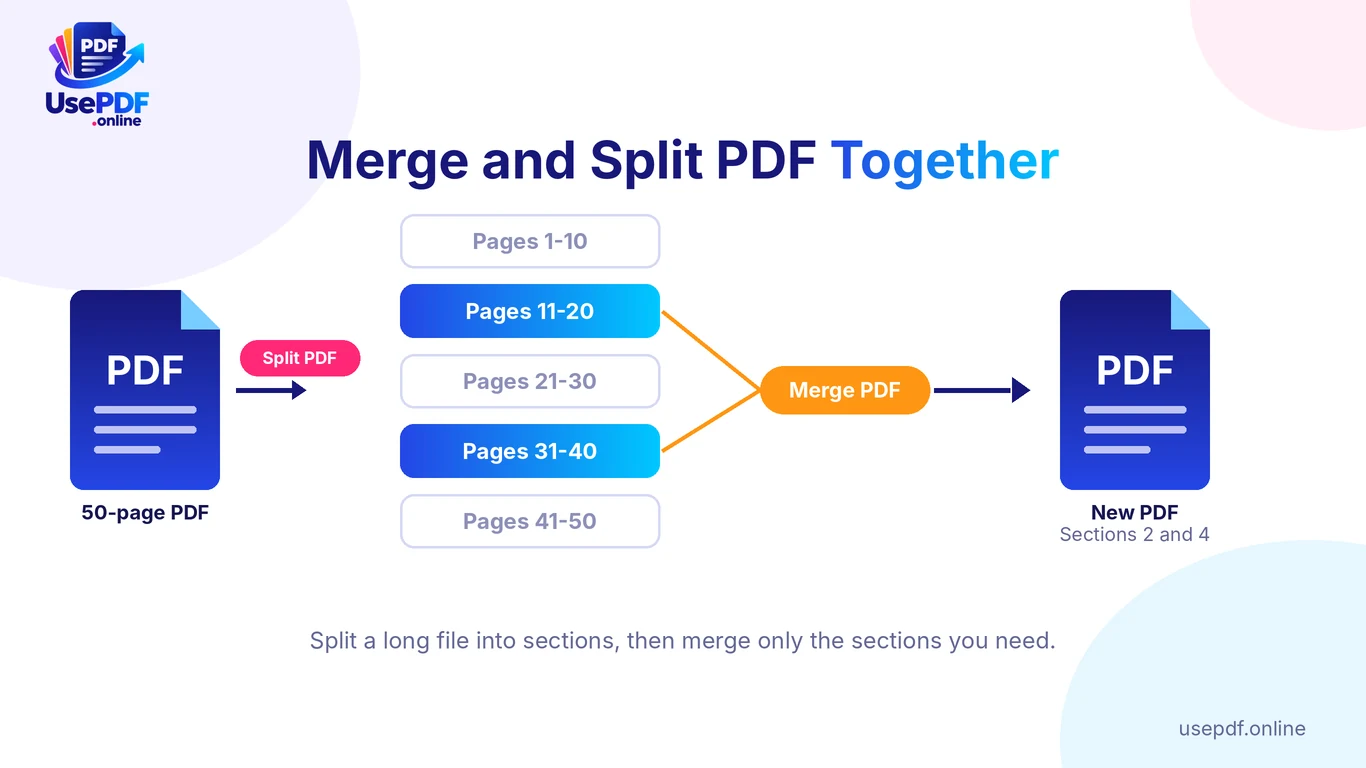
Important: UsePDF.online treats each comma-separated range as a separate output file. Entering 1-3, 5, 8-10 creates three PDFs, not one combined document. If you need nonconsecutive pages combined into one PDF, first extract the relevant sections, then use the Merge PDF tool to join them.
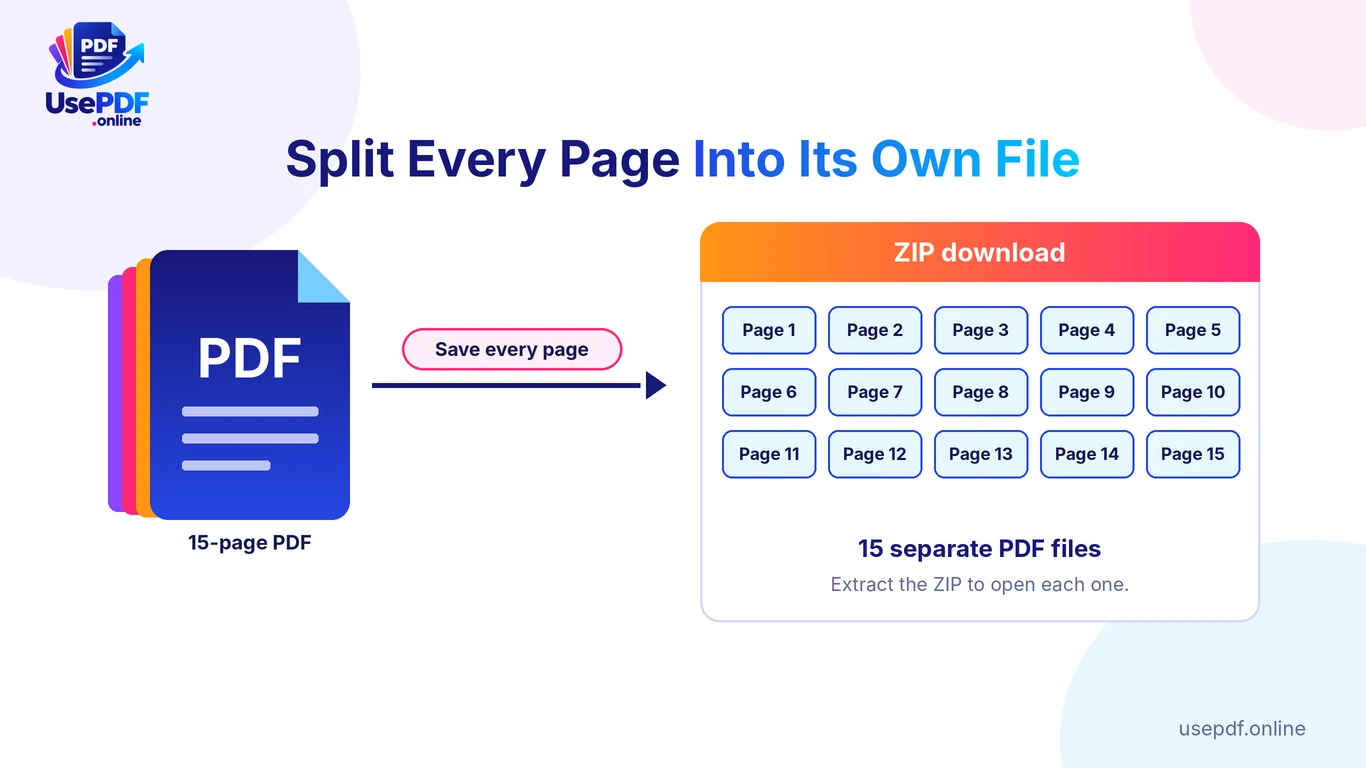
How to split every PDF page into a separate file
Need a separate PDF for every page? Tick the option to save every page as a separate file, click Split PDF, and download the resulting ZIP file. You don't need to type any ranges.
For example, a 15-page document becomes 15 individual PDF files. This helps with batch document organization, distributing worksheets, or separating scanned paperwork.
How to Save Only the Pages You Need
Saving selected PDF pages makes documents easier to share, review, and manage. Here are a few practical situations.
Students and teachers: A teacher may want to share pages 10–15 of a study guide instead of the entire document. Students can extract relevant textbook sections for revision.
Office professionals: A project manager can extract the executive summary from a lengthy report before sending it to stakeholders.
Freelancers: A designer or consultant may need to send only the pages relevant to a particular client.
Administrative teams: Employees can separate invoices, forms, and other records from a combined PDF.
The process is the same each time: identify the page numbers, enter them in the PDF splitter, and save the file. If the output contains multiple PDFs, they download together in a ZIP archive.
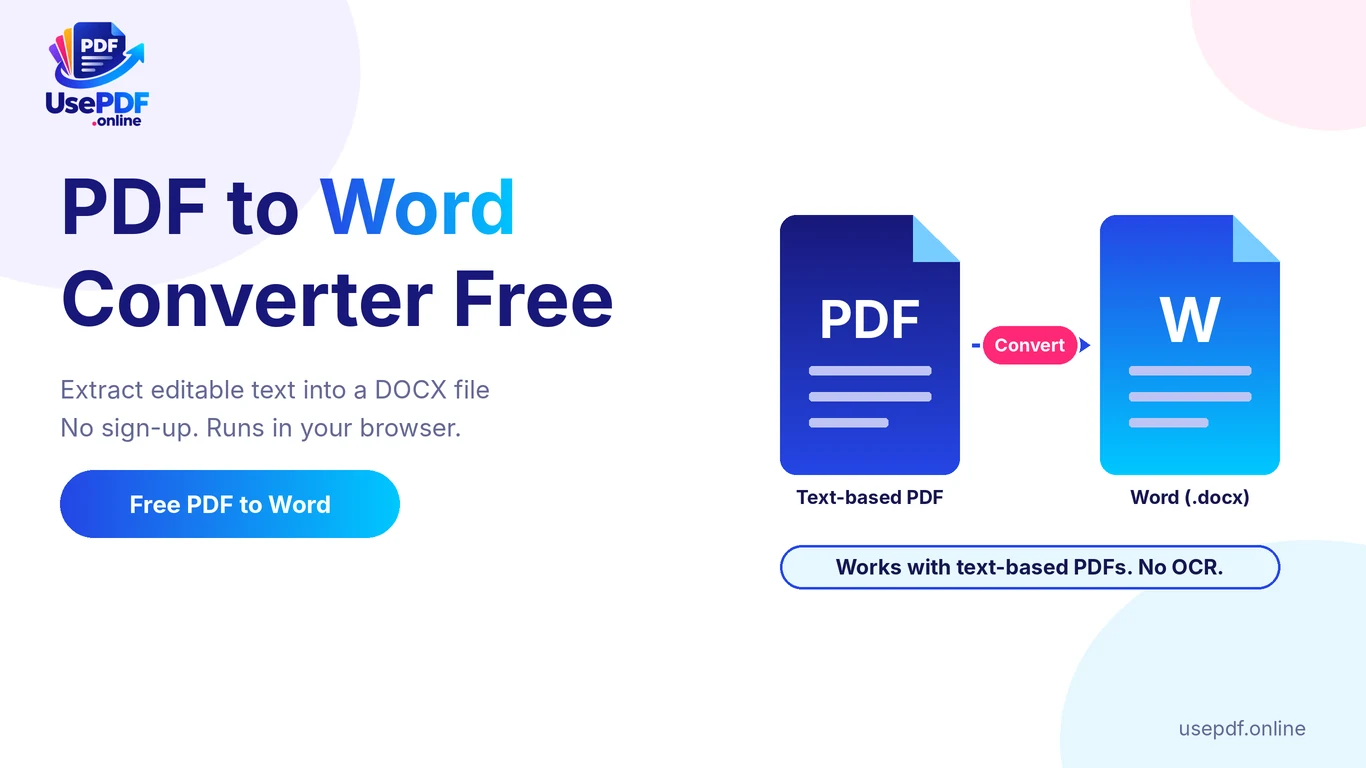
For documents containing sensitive information, review the extracted file before sharing it. The FTC's guide to protecting personal information advises keeping only the data you need, and sharing just the right pages follows the same idea. If you need a page as a picture instead, PDF to JPG saves each page as a JPG. If you need the text in an editable file, try PDF to Word, which extracts text but does not reproduce the full layout or read scanned pages.
Merge and Split PDF Online Free: How the Two Tools Work Together
Splitting and merging PDFs are opposite document-management operations, but they often work together. Both tools are free, so you can merge and split PDF online free as often as the job needs, without an account for either one.
| Feature | Split PDF | Merge PDF |
|---|---|---|
| Main purpose | Divide a PDF | Combine PDFs |
| Input | One PDF document | Multiple PDF documents |
| Output | One or more smaller PDFs | One combined PDF |
| Common use | Extract pages or chapters | Combine reports or files |
| UsePDF tool | Split PDF | Merge PDF |
For example, you might split a 50-page document into five sections, then merge two of those sections into a new PDF. This lets you reorganize content without recreating the original document manually.
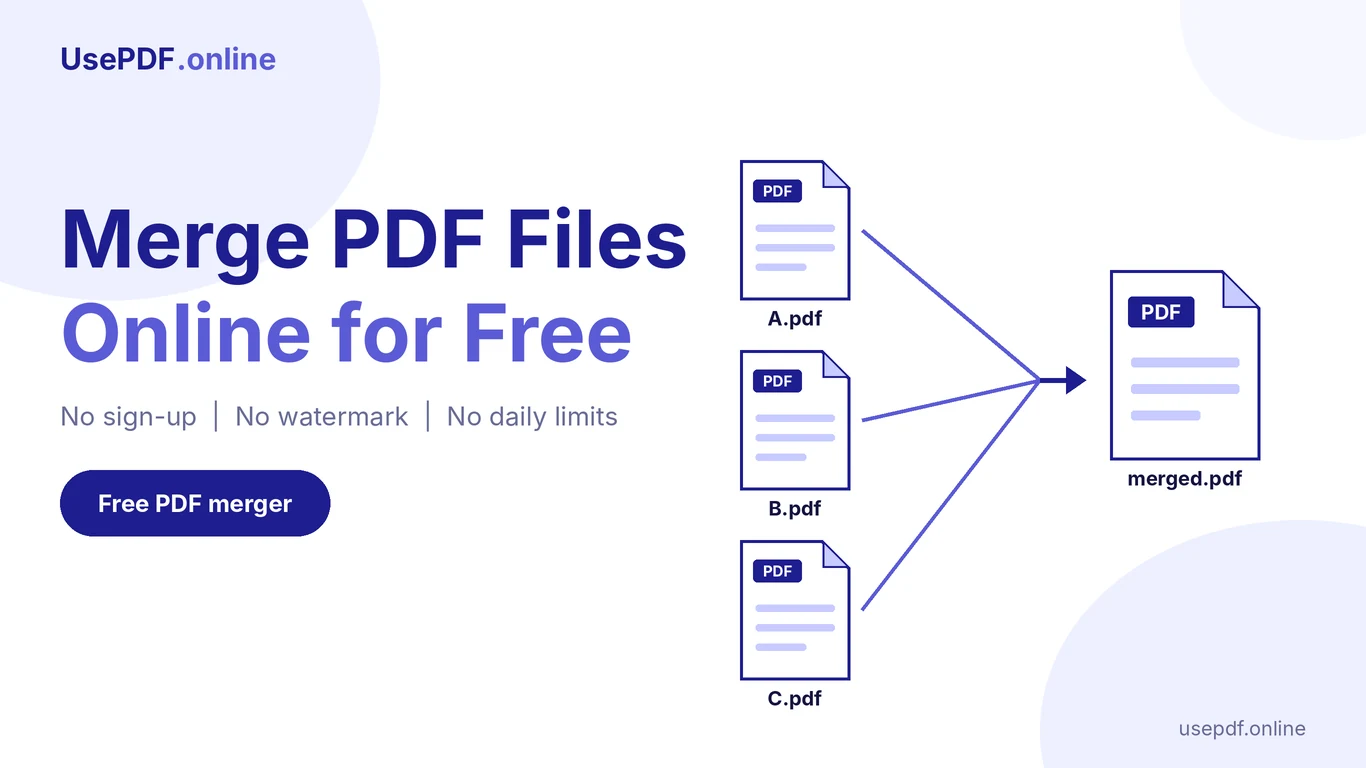
Our guide to merging PDF files online for free covers the merge side step by step. If the final file is still too big to send, our guide to compressing a PDF online for free explains your options.
How to Split PDFs on Different Devices
You don't need a dedicated PDF application to extract pages. A modern web browser is enough to open UsePDF.online. The Split PDF page says the tool works on phones.
Split PDF on Windows. Open the PDF splitter in Chrome, Edge, or another modern browser. Select your file, enter the page ranges, and download the results. You don't need a separate Windows application.
Split PDF on Mac. Open the tool in Safari, Chrome, or another modern browser. Choose the PDF from your Mac, select the pages you need, and save the extracted file.
Split PDF on Android. Open UsePDF.online in your mobile browser. Select a PDF from your phone's storage, enter the page ranges, and download the output. If several PDFs are created, you may need to extract the ZIP archive with your phone's file manager.
Split PDF on iPhone or iPad. Open the tool in Safari or another modern browser. Choose a PDF from the Files app, specify the pages, and download the result. For multiple output files, open the downloaded ZIP in the Files app to reach the individual PDFs.
The same general workflow works on desktop and mobile. Very large documents may need more memory than some phones can comfortably provide.
Common PDF Splitting Errors and How to Fix Them
Even a simple split can hit a snag. Here are common issues and practical fixes.
| Problem | Possible cause | Recommended solution |
|---|---|---|
| PDF won't open | Password protection or damaged file | Unlock it with authorization or re-save a valid copy |
| Invalid page range | Incorrect page numbers | Use valid numbers within the displayed page count |
| Only one PDF downloaded | Only one range was entered | Add separate comma-separated ranges |
| ZIP file downloaded | Multiple output PDFs were created | Extract the ZIP archive |
| Processing fails | Browser memory or document issue | Try a smaller file or a desktop browser |
| Wrong pages extracted | Incorrect page numbering | Check the PDF viewer's page count and your range |
Can you split a password-protected PDF? UsePDF.online requires password-protected documents to be unlocked first. If you have permission to access the file, unlock it in a PDF application and then process the unlocked copy.
Why is the page range rejected? Page numbers must start at 1 and cannot exceed the total number of pages. Entering 15-25 for a 20-page PDF is invalid. Watch for typos such as a trailing hyphen or letters, correct the range, and try again.
Why did the tool download a ZIP file? When multiple PDFs are generated, UsePDF.online bundles them into one ZIP archive. Extract the ZIP to reach each PDF.
Split Large PDFs Online Free: 100 MB, 150 MB and 200 MB Files
People often search for a free splitter that accepts a specific size, such as 100 MB, 150 MB or 200 MB. Here is what we can say accurately about UsePDF.online.
- The Split PDF page lists no file size limit in MB. Its only rule is that page numbers must stay between 1 and the total page count.
- The site states that its tools have no daily limit.
- The PDF is processed in your browser, so your device and browser decide how large a file they can handle.
We have not published test results for 100 MB, 150 MB or 200 MB files, so we cannot promise that a file of a given size will work on your device.
Is There a File Size Limit?
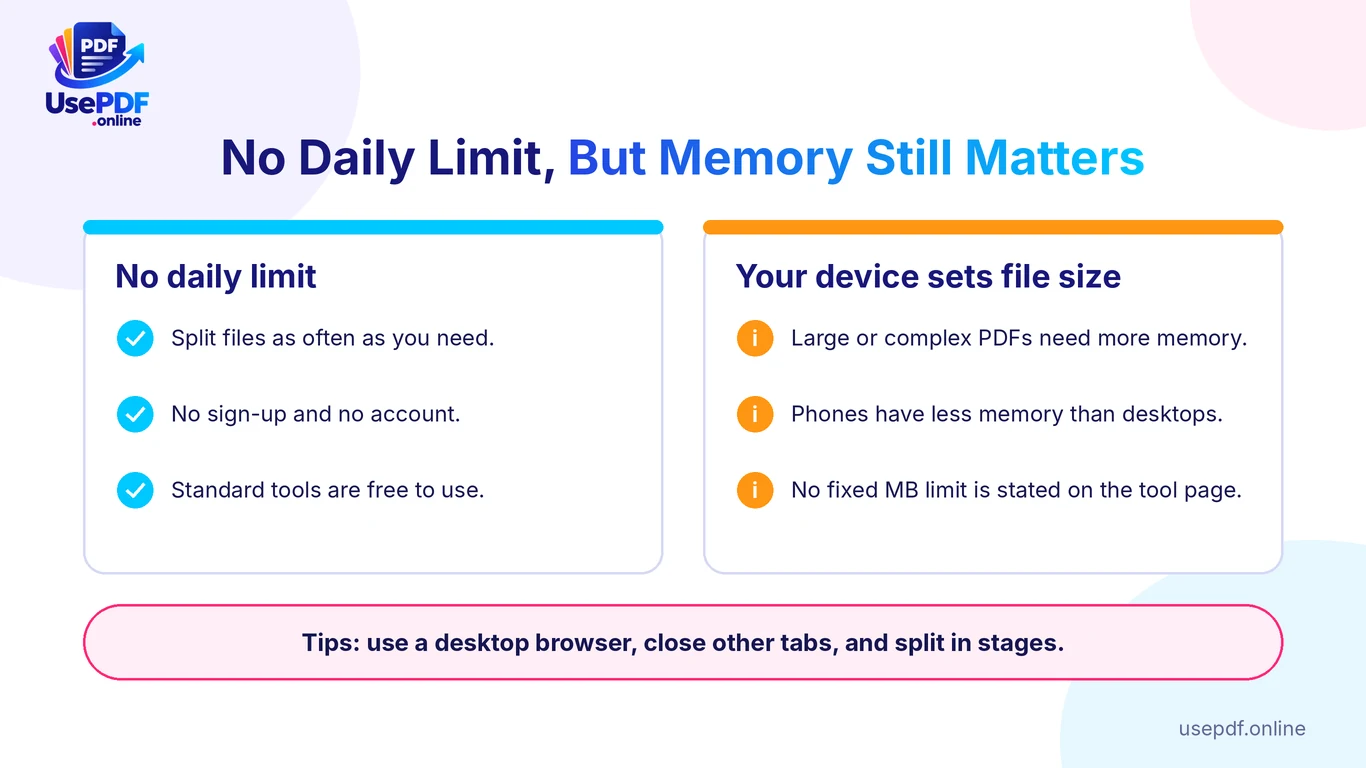
If you are looking for a free online split PDF tool with no size limit, read that phrase carefully. The tool page states no fixed limit, but "no size limit" does not mean every file will open. A very large or complex PDF can still fail if your browser runs out of memory.
Is Split PDF Online Free Unlimited?
Partly. The number of times you split files is not capped by a daily limit, according to the site. The size and complexity of each file are still limited by your device's memory.
For comparison, Adobe's online split tool documents a clear capacity: PDFs of 1 GB or less and 1,500 pages or less, with up to 20 split files per run. It also asks you to sign in before splitting, and its page says files are handled on Adobe's servers and deleted unless you sign in to save them. If you need a documented size ceiling, Adobe states one. If you want no sign-in and browser-only processing, UsePDF.online fits.
Best practices for working with large PDF documents
- Plan your page ranges first. Open the file in a viewer and note the sections you want. A 100-page report might hold five chapters of 20 pages each.
- Use a desktop browser for big files. Close other tabs first to free memory.
- Split in stages. Pull out a few big sections first, then split those further.
- Use meaningful filenames. Rename outputs, for example
Annual-Report-Chapter-2.pdf. - Check the extracted pages. Confirm the first and last pages are correct.
- Keep the original. Splitting creates new files, so your original stays your reference.
- Compress only if needed. If an extracted PDF is still too big for email, try the free Compress PDF tool. It can turn pages into images, which may remove selectable or searchable text, so keep the original if text search matters.
Why Choose UsePDF.online as a Split PDF Online Free Site?
Several PDF splitting sites exist. UsePDF.online works well as an everyday free site and tool for these reasons:
- Free standard splitting. Extract PDF pages without a subscription or an account.
- No daily usage limits. Split documents as often as needed, subject to your device's memory.
- Browser-based processing. Your PDF is processed locally rather than uploaded to UsePDF.online. That reduces how much document content travels to a remote server, although you should still follow normal device and browser security habits.
- Original page quality. Pages are copied without re-rendering, which helps preserve the original content and appearance.
- Flexible extraction. Save a single page, several page ranges, or every page as an individual PDF.
Here is the split PDF online free tool at a glance:
| Feature | What the tool page states |
|---|---|
| Input | One PDF at a time (.pdf) |
| Page selection | Single pages and ranges, separated by commas |
| Every-page option | Yes, delivered as a ZIP file |
| Output | One PDF, or a ZIP when several files are created |
| Processing | In your browser, not uploaded |
| Sign-up | None |
| File size | No fixed limit in MB; device memory applies |
| Password-protected files | Must be unlocked first |
| Bookmarks, form fields, links | Not addressed, so check the result if you rely on them |
Whether you're organizing work documents, preparing study materials, or extracting sections from a lengthy report, UsePDF.online gives you a straightforward way to finish the job.
Frequently Asked Questions About Splitting PDFs
How can I split PDF online free without installing software?
Visit UsePDF.online, select your PDF, enter the pages or ranges you want, and click Split PDF. Download the result without installing software or registering.
Can I split a PDF online free with no sign up or email?
Yes. The Split PDF page says "Free, no sign-up," and there is no account to create, so you do not give an email address to split a file.
Is there a size limit, and will 100 MB, 150 MB or 200 MB files work?
The tool page lists no fixed size limit in MB. Because the file is processed in your browser, your device's memory decides what works, and we cannot promise results for a specific size. Try a desktop browser for very large files.
Is split PDF online free unlimited?
There is no daily limit on the standard tools, according to the site. Each file is still limited by your device's memory and browser.
Can I extract just one page from a PDF?
Yes. Enter the page number, such as5, and split the document. The result is a separate one-page PDF.
Can I split a PDF into multiple files at once?
Yes. Enter several comma-separated ranges, such as 1-5, 6-10, 11-15. Each range becomes a separate PDF, and the files arrive together in a ZIP archive.
Does splitting a PDF reduce its quality?
No. UsePDF.online copies the selected pages without re-rendering them, so the original visual quality is preserved.
Is UsePDF.online safe for private documents?
The Split PDF tool processes the PDF in your browser rather than uploading it to UsePDF.online's servers. That is a useful privacy advantage, but you should still follow normal device, browser, and document-security precautions.
Final Thoughts
Splitting a PDF doesn't have to be complicated or expensive. Whether you need to extract one page, separate chapters, or divide a large document into smaller files, a browser-based PDF splitter helps you organize documents quickly.
With UsePDF.online, you can split PDF files for free, choose specific pages or ranges, keep the original page quality, and download your results without creating an account. Split PDF Free and try it on your next document.