
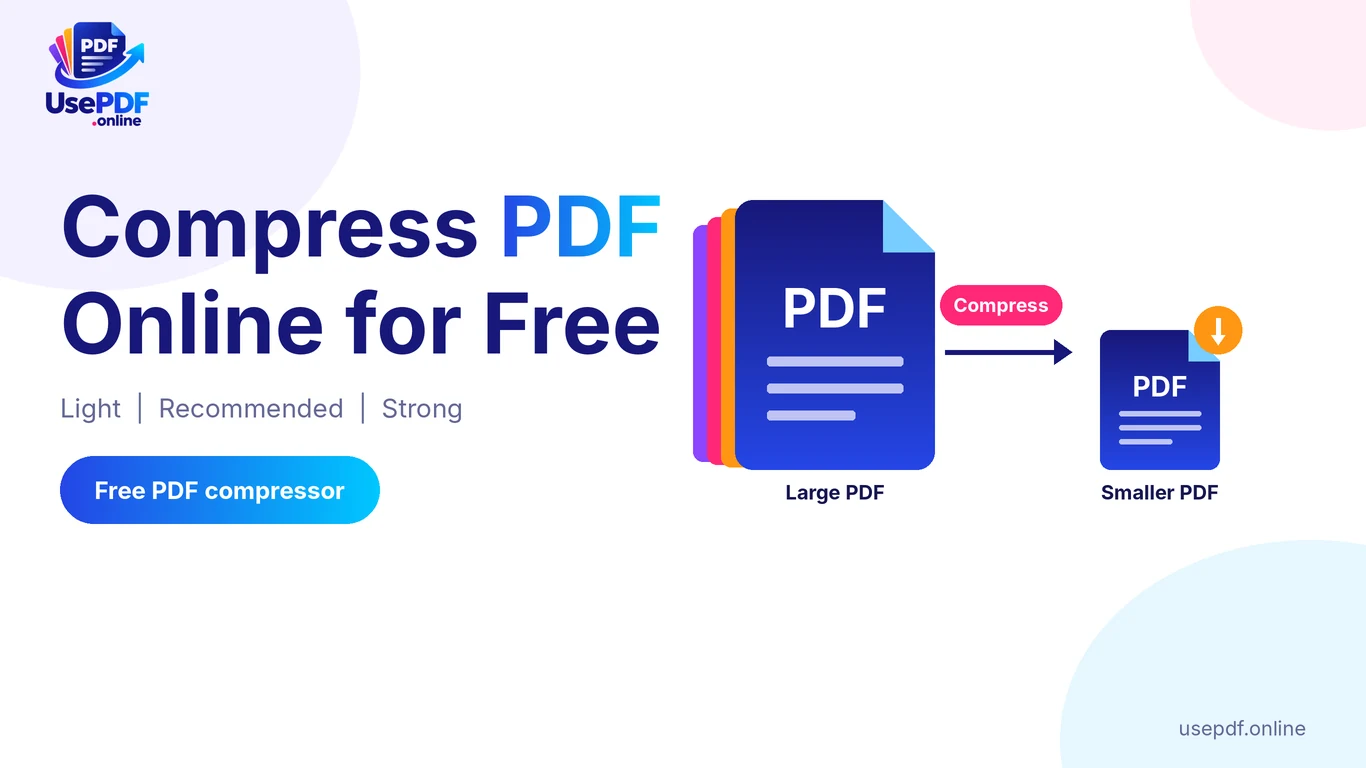
To compress a PDF online for free, open the Compress PDF tool on UsePDF.online, add your file, choose a level, and press Compress PDF. Start with Recommended, then check the pages before you send the file. Scanned and photo-heavy PDFs usually shrink the most. One warning before you start. The tool turns each page into a compressed image, so you can no longer select or search the text in the new file. Keep your original if you may need that text later. If you want to compress PDF online free, UsePDF Online offers a simple way to reduce file size without installing any software. It’s especially useful when you need to upload documents to websites, share files by email, or save storage space while keeping your PDFs easier to manage.
The tool runs in your browser, needs no sign-up, and works on phones. This guide also covers email limits, Macs, and choosing the right tool.
Why Are Some PDF Files So Large?
Three things make a PDF heavy.
Images. Photos and graphics take far more space than text. A report with full-size pictures grows fast.
Scanned pages. A scanned PDF holds only images of the pages, according to Adobe's OCR documentation. Twenty scanned pages means twenty large pictures.
Merged files. Combining PDFs adds their sizes together, so the merged file ends up roughly as large as the originals combined.
Text-only PDFs are usually small already, so they gain the least from compression.
How UsePDF.online helps: Compress PDF targets exactly these heavy files, and it shows the size before and after.
How to Compress PDF Files for Free (Step by Step)
Follow these steps on any device with a modern browser.
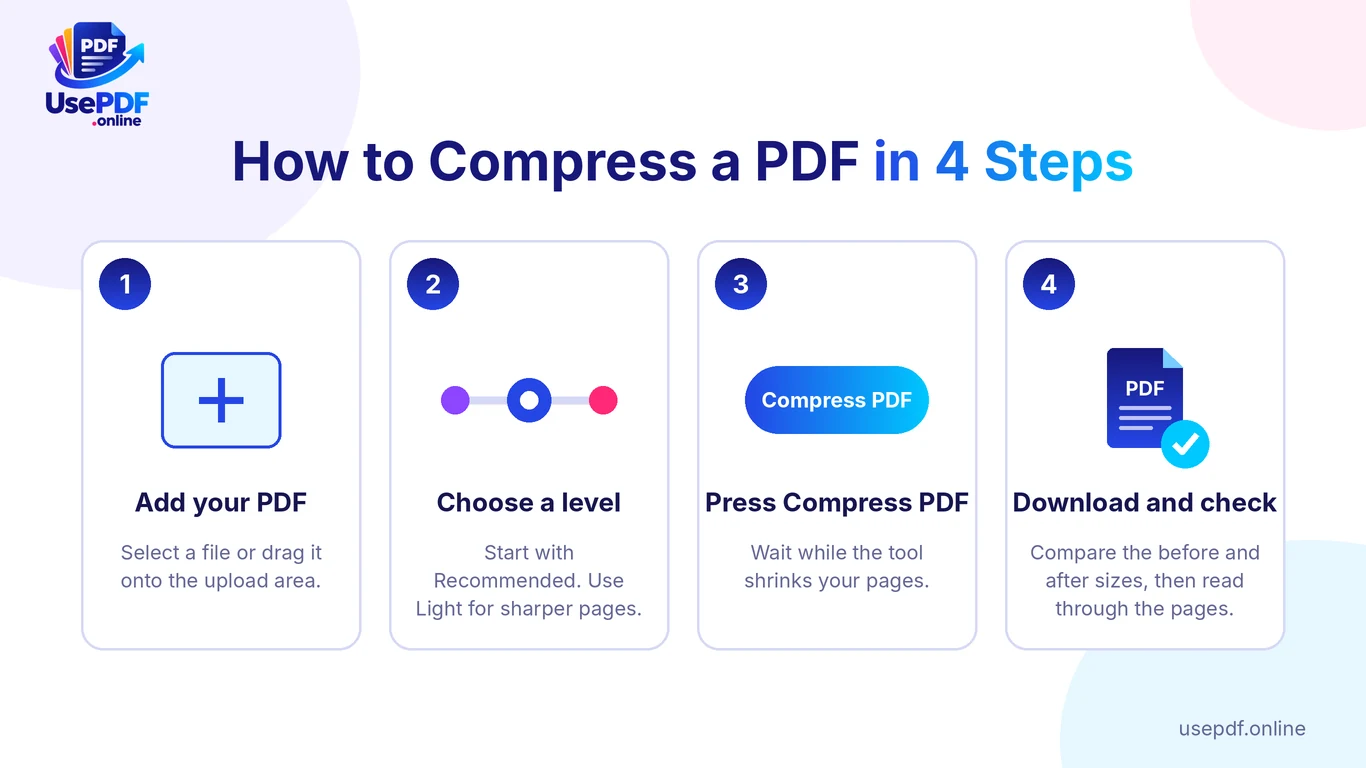
- Open the tool. Go to the Compress PDF page on UsePDF.online.
- Add your PDF. Select a file or drag it onto the upload area. Password-protected files must be unlocked first.
- Choose a level. Pick Light, Recommended or Strong. If you are unsure, start with Recommended.
- Press Compress PDF. Watch the progress message while the tool works.
- Download the result. The page shows the file size before and after.
- Check the pages. Open the file and read through it before you send it.
If the compressed version would not be smaller, the tool says so instead of handing back a bigger file.
How UsePDF.online helps: You can compress PDF files online free of charge with no account. The site states that its tools have no watermark and no daily limit.
How Can I Compress PDF Files Using Online Tools?
Online compressors fall into two groups. Some upload your file to a server and process it there. Others process it inside your browser.
Adobe's online compressor is an upload-style tool. Its page says Adobe deletes a file from its servers if you do not save it, and that files are encrypted during processing. UsePDF.online works differently. According to the site, compression runs in your browser and your PDF is not uploaded. The page and its processing libraries load from the internet, but your files are not part of those requests.
Ask these five questions before you pick any tool to compress PDF files online:
- Where does processing happen? In your browser or on a server?
- What are the limits? Check file size, daily tasks and sign-up rules.
- Does it add a watermark?
- Can you control quality? Look for levels or a target size.
- What happens to text? Some tools keep it, and some turn pages into images.
No online tool removes every risk. Avoid shared computers for sensitive documents, and delete copies you no longer need.
How UsePDF.online helps: Browser-based processing keeps your file on your device while the tool works.
Understanding Light, Recommended and Strong Compression
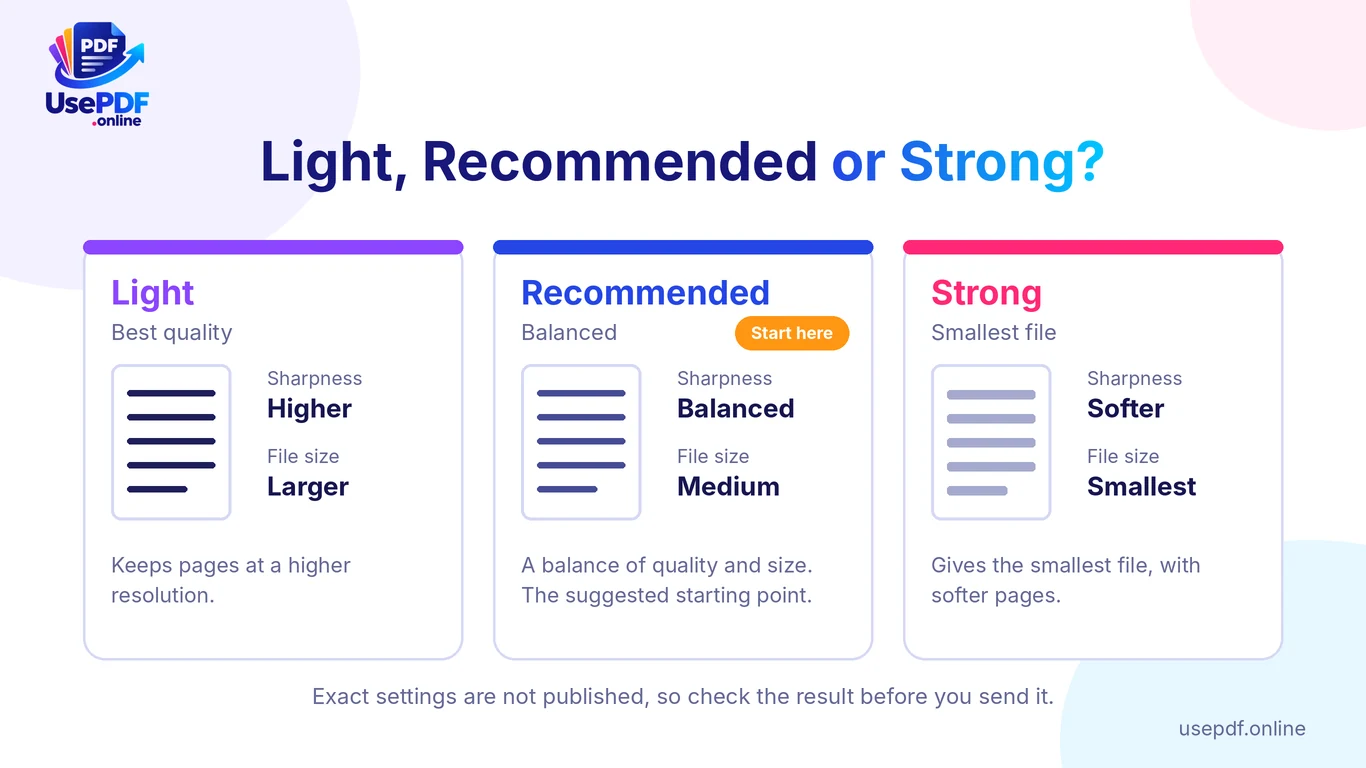
The tool offers three levels. Each one trades sharpness for file size.
| Level | What it does | Good fit for |
|---|---|---|
| Light | Keeps pages at a higher resolution for the best quality | Contracts, small print, files you plan to print |
| Recommended | Balances quality and file size. This is the suggested starting point | Most emails and uploads |
| Strong | Produces the smallest file, with softer pages | Strict size limits, as long as the text stays readable |
The tool does not publish exact resolution or quality numbers for each level, so results vary from file to file. Try a level, check the result, and move up or down.
How PDF Compression Affects Image and Text Quality
Because the tool converts each page into a compressed image, pictures and text both become pixels. Light keeps small print sharper. Strong softens everything, including text.
After every compression, zoom to 100%, read the smallest text, and check numbers, signatures and photos for blocky edges.
Compressing Scanned PDFs vs Text-Based PDFs
The two types behave very differently.
| Scanned PDF | Text-based PDF | |
|---|---|---|
| What it contains | Page images | Real text, fonts and graphics |
| Typical result | Often a large saving | May shrink little or not at all |
| Text search after compression | Not searchable unless OCR was added, and any OCR text is lost | Searchable before, not searchable after |
| Level to try first | Recommended | Light, or skip compression |
OCR, short for optical character recognition, turns the text in scanned page images into searchable text, according to Adobe. Compression turns pages back into images, so that searchable layer does not survive.
A text-based PDF that is already compact may come back with a message that it is already well optimized. That is a useful result, not an error.
How to Compress PDF Files for Email and Uploads
Start with the limit you need to meet. Personal Gmail accounts allow a total of 25 MB of attachments, and larger files become Google Drive links. Work and school accounts follow limits set by their administrator, according to Google's Gmail Help. Upload forms set their own limits, so check the form first.
These steps make a smaller PDF for email:
- Merge first, compress once. Merging keeps every page unchanged, so the result is about the sum of the originals. Use Merge PDF to combine your files, then compress the merged file. Our guide to merging PDF files online for free shows the full process.
- Shrink photos before you build the document. The Image Compressor has a quality slider from 10% to 100%, an optional maximum width, and JPG or WebP output. It shows the original size, the new size and the percentage saved.
- Share one page as a picture. PDF to JPG saves each page as a JPG inside a ZIP file. The Small files option renders pages at 1x to keep downloads light.
- Read more PDF tips. See ARTICLE 11 ANCHOR TEXT.
Three quick examples:
Student. A scanned assignment is too big for the school portal. Try Recommended, then check that handwriting is still readable.
Freelancer. An invoice bundle with receipts will not fit in an email. Merge the files, compress once, and keep the original for your records.
Office worker. A monthly report full of charts is too large to send. Start with Light so the charts stay crisp, then move to Recommended if it is still too big.
How UsePDF.online helps: Merge, compress, image and page tools sit on the same free site, so the whole email workflow needs no extra apps.
How to Compress PDF Files on Mac
You have two good options on a Mac. One is a browser tool. The other is the Preview app that comes with macOS.
Option 1: Use UsePDF.online in your Mac's browser. Open the Compress PDF tool, then follow the six steps above. Nothing needs installing.
Option 2: Use Preview. Apple lists these steps in its Preview user guide:
- Open the PDF in Preview.
- Choose File > Export.
- In the Quartz Filter pop-up menu, select Reduce File Size.
- Click Save.
- If Preview asks to replace the file, click Cancel, type a new name in the Export As field, and save again.
Step 5 matters. Apple notes that a compressed PDF may be of lower quality than the original, and saving over the same name replaces your original. Preview's export window also offers checkboxes such as Optimize images for screen and Save images as JPEG. Both aim to reduce file size.
Choosing an Application for Mac to Compress PDF Files
Use Preview when you want a built-in app with no install. Use UsePDF.online when you want three clear levels, a before-and-after size display, and the same steps on Mac, Windows and phones. Dedicated third-party Mac apps exist too, but some are paid or trial-based, so check the current terms first.
How UsePDF.online helps: The browser tool gives Mac users a second option next to Preview, and the same steps work on any other computer they use.
What Is the Best Tool to Compress PDF Files?
No single tool wins every job. The best tool to compress PDF files depends on what you need. Here is a fair comparison of three options we checked.
| UsePDF.online | Preview (Mac) | Adobe online compressor | |
|---|---|---|---|
| Where it runs | Your browser | Your Mac | Adobe's servers |
| Sign-up | None | None | A free account is offered; the page does not clearly say it is required |
| Control | Light, Recommended, Strong | Reduce File Size filter and export checkboxes | High, Medium, Low, plus a target size from 100 KB to 1 MB |
| Text after compression | Not selectable or searchable | Check the result yourself | Adobe says text and graphics can keep their original quality |
| Best for | Scans, photo-heavy files, quick jobs without an account | Mac users who want a built-in app | Cases where you need a specific target size |
UsePDF.online fits scanned and image-heavy files, and jobs where you prefer not to upload a document. Adobe fits better when you need a target size or want text to stay live. Preview fits Mac users who want no extra tools. UsePDF.online has no target-size option, so you adjust by trying levels.
Why Searchable Text May Disappear After Compression
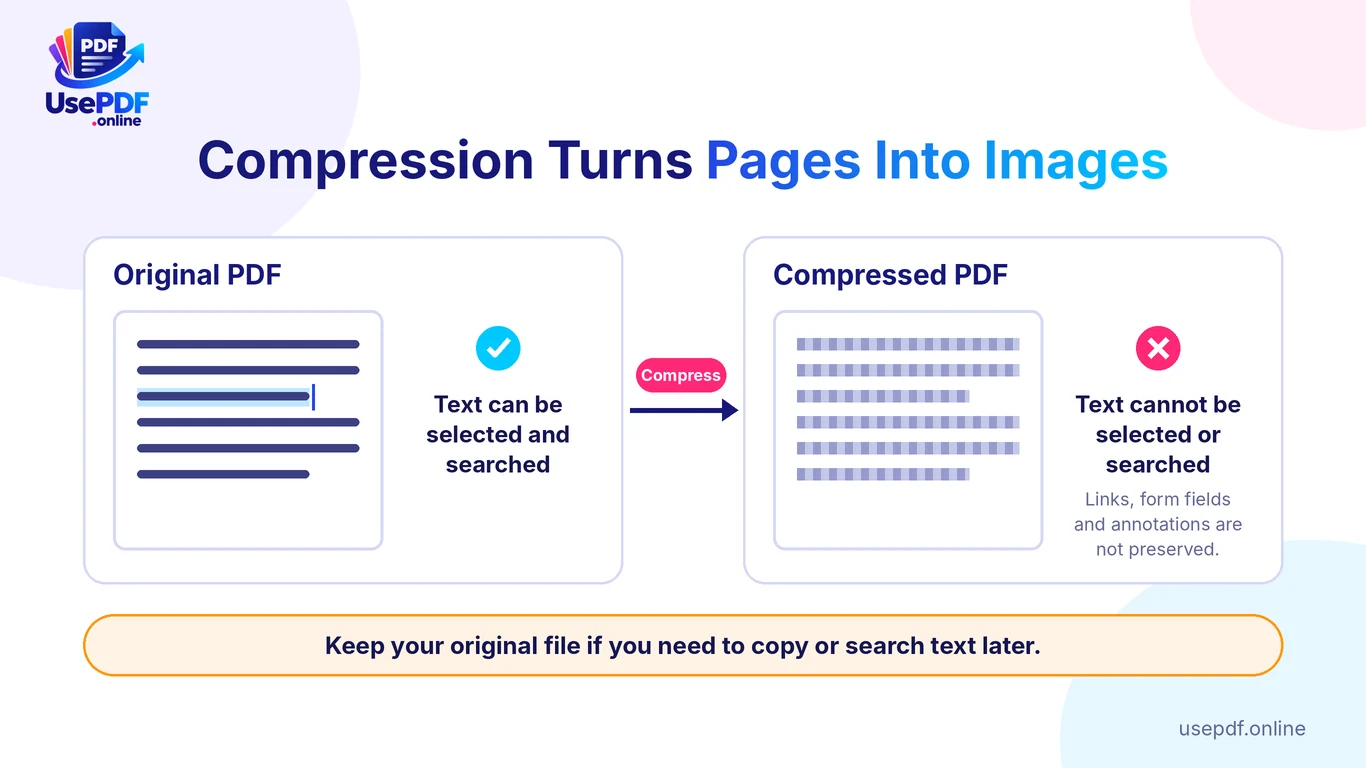
The tool converts each page into a compressed image. That has three effects, all stated on the tool page:
- The text can no longer be selected or searched.
- Links, form fields and annotations are not preserved.
- The file is a set of page images, not a document with live text.
Plan around this:
- Keep your original file. Send the compressed copy for reading, and use the original when you need to copy, search or fill in anything.
- Do not compress a file that you still have to edit or search.
- If you need editable text, run the original through PDF to Word. It extracts the text into a Word file. It does not reproduce the full layout, and it does not read scanned pages.
How to Compress PDF Files Effectively
To compress PDF files effectively, change one setting at a time and check each result. Use this routine:
- Compress with Recommended first.
- Zoom to 100% and check the smallest text.
- If text looks fuzzy, try Light.
- If the file is still too big, try Strong and check again.
- If the file barely shrinks, it is probably mostly text or already compact.
Save each attempt under a clear name, such as report-light.pdf and report-strong.pdf, so you can compare them side by side.
Best Ways to Compress PDF Files in 2026
These six methods cover most situations today:
- Use a browser-based compressor such as Compress PDF for scans and photo-heavy files.
- Shrink images first with the Image Compressor when you still control the source photos.
- Merge first, compress once so you recompress only a single file.
- Split a huge file with Split PDF, compress the parts, then merge them again.
- Use Preview on a Mac when you want a built-in option.
- Send a link instead when the file is still too big. Gmail turns oversized attachments into Google Drive links.
Tool limits and plans change, so recheck the current terms before you rely on any service.
Common PDF Compression Problems and Solutions
The tool says the file is already well optimized, or the size barely changes. The compressed version would not be smaller. Try Strong, or accept that the file is already compact.
Text looks fuzzy. Use Light. It keeps pages at a higher resolution.
You cannot select or search text. This is expected, because pages become images. Use your original file when you need the text.
Links, form fields or comments stopped working. The tool does not preserve them. Keep the original for anything interactive.
The file is rejected. Password-protected files must be unlocked first. Open the file in a PDF viewer, remove the password only if you have permission, and add it again.
The browser slows down on a large file. There is no fixed size limit, but your device's memory sets a practical one. Close other tabs first, or split the file, compress each part, and merge the parts afterward.
FAQs About PDF Compression
How can I compress PDF files for free?
Open Compress PDF on UsePDF.online, add your file, pick a level and download the result. You need no account. The site states that its tools have no watermark and no daily limit.
Will compression reduce my PDF's quality?
Yes, to some degree. Each page becomes a compressed image, so sharpness drops as you move from Light to Strong. Check the result at 100% zoom before you send it.
Can I compress a PDF on a Mac without installing anything?
Yes. Use Preview's Reduce File Size filter, or open the Compress PDF tool in your browser.
Is there a file size limit?
The tool page states no maximum file size or page count. Your device's memory still sets a practical limit, so compress very large files in parts.
Are my files uploaded to a server?
According to UsePDF.online, no. Compression runs in your browser, and the page and its libraries load from the internet when you open the tool.
Ready to shrink your file? Compress PDF Free on UsePDF.online, with no sign-up. Keep your original copy safe, and check the pages before you send the result.